I've transferred this blog to the new beta.blogger.com. Unfortunately "Previous posts" section does not work as it used to. So I've renamed "Previous posts" to "Recent posts" and added a new section titled "All posts" using FeedBurner BuzzBoost service. Here is the code:
[]
Friday, November 03, 2006

Tuesday, October 31, 2006
Double-click
To learn and to practise what is learned
time and again is pleasure, is it not?
To have friends come from afar (to share learning)
is happiness, is it not?
To be unperturbed when not appreciated by
others is gentlemanly, is it not?
--- K'UNG-FU-TZU, Lun Yu (circa 500 BC)
Do you know that there exists a mouse with double-click button? If you don't, now you know!time and again is pleasure, is it not?
To have friends come from afar (to share learning)
is happiness, is it not?
To be unperturbed when not appreciated by
others is gentlemanly, is it not?
--- K'UNG-FU-TZU, Lun Yu (circa 500 BC)
What happens when you double-click on the file (or shortcut) in Windows operating system (OS)? Based on the file extension (usually 2, 3 or 4 letters after the last dot in the file name) OS determines its file type and then executes an application that can open (display) selected file. BTW, this is the default behaviour - you can set that this action is triggered by single-click:

We've already seen that using doknir it is possible to open (view) files with the extension .PS or .DJVU. Wouldn't it be nice to open such files directly using double-click? Well, after first two steps it is not difficult to make the third step: We will write a simple Delphi executable (called "doknir launcher") that will, when executed by double-click on a file, copy that file to the incoming folder. The source follows:
We need three functions: to get "My documents" folder (because there is our incoming folder), to get the file size and to copy file:
---
---
 function GetMyDocuments: string;
 var
   Res: Bool;
   Path: array[0..Max_Path] of Char;
 begin
   Res := ShGetSpecialFolderPath(0, Path, csidl_Personal, False);
   if not Res then raise
      Exception.Create('Could not determine My Documents path');
   Result := Path;
 end;   // GetMyDocuments
...
 function GetFSize(cFile: string): Int64;
 var
    fs: TFileStream;
 begin
    fs:=NIL;
    result:=-1;
    try
       fs:=TFileStream.Create(cFile,
          fmOpenRead+fmShareDenyNone);
       result:=fs.Size;
    finally
       fs.Free;
    end;
 end;   // GetFSize
...
 function FileCopy(cF, cT: string):integer;
begin
   CopyFile( PChar(cF), PChar(cT), FALSE );
   result:=0;
end;   // FileCopy
I could use OnCreate event to copy file, but I prefer timer (I named it Launcher) because it gives me more flexibility:
---
procedure TForm1.FormCreate(Sender: TObject);---
begin
Label1.Caption:=CmdLine;
Label2.Caption:=ParamStr(1);
cFileDok:=ParamStr(1);
cMyDok:=GetMyDocuments()+'/[_doknir_]';
cPhase:='WAIT';
Launcher.Enabled:=TRUE; // enable timer
end; // FormCreate
...
procedure TForm1.LauncherTimer(Sender: TObject);
var
nSize: integer;
cTo: string;
begin
Launcher.Enabled:=FALSE;
if cFileDok='' then begin Close; Exit end;
if not FileExists(cFileDok) then begin
ShowMessage('File not accessible!');
Close; Exit;
end;
cPhase:='LAUNCH';
nSize:=GetFSize(cFileDok);
if nSize<0>
ShowMessage('Error<0');
end else if nSize=0 then begin
ShowMessage('Error=0');
end else begin // nSize>0
try
cTo:=cMyDok+'\'+ExtractFileName(cFileDok);
FileCopy(cFileDok, cTo);
except
ShowMessage('Error copy: '+cFileDok);
end;
end;
Close;
end; //LauncherTimer
Now we will try to "teach" Windows how to open files using our new "doknir launcher". First we have to find a file that we wish to view in doknir (for example PDF file). Press [Shift] and right-click on it. There should be "Open with ..." option visible in the pop-up menu - select it. The following dialog appears:
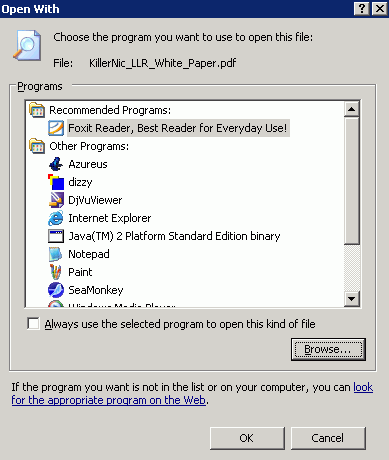 Click on button [Browse...] to select newly created "doknir launcher" executable, check "Alway use the selected program to open this kind of file" and press OK. This means that from now on whenever we will double-click on PDF file, it will be displayed in doknir. We can repeat above steps for other file types. For example, I've associated 'doknir launcher' to the following file extensions: .PDF, .PS, .DJVU and .SXW. Nice, is it not?
[]
Tuesday, September 19, 2006
111 gibibytes of doknir, s'il vous plait
According to the http://torrent.vmware.com:6969/, more than 100 GiB of doknir were downloaded. BTW, size of doknir.zip is 772 MiB.
Friday, August 04, 2006
OpenOffice Viewer
In posts about Crystal Reports and Word 2007 I brought up an issue of printer metrics (and page layout) so I've searched about "printer independent layout". I've discovered a document titled "Printer Independent Layout" [2003-MAR-12] on the following page: "Spec Proposals for OOo 1.1.x".
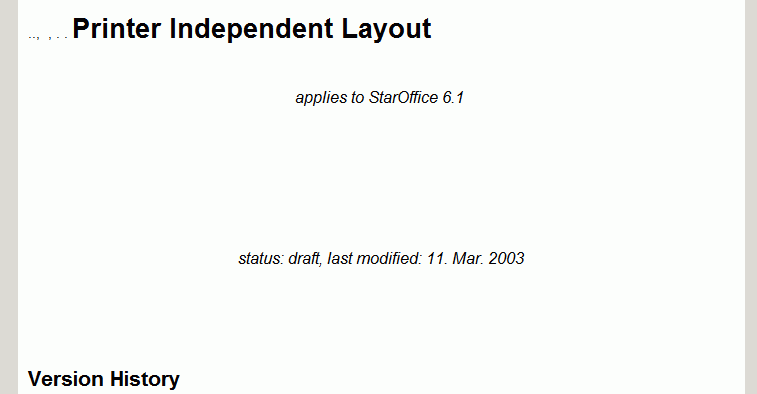
Document has an extension SXW and I have no application associated to it in my Windows environment. According to the Wikipedia, SXW is acronym for StarOffice XML Writer and it is the file extension for OpenOffice.org text files. Is there a tiny SXW viewer for Windows? Yes, it is: Visioo-writer - Visionneuse OpenOffice.org, but it is still in development (version 0.6.1). It is based on Python and here is a result (part of the first page):
What happens if we want to print the SXW file via doknir? This:
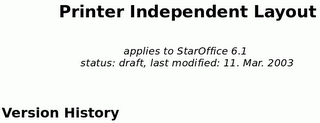 We can see that KWord was not able to display SXW document correctly.
BTW, here is the abstract of the above document:
Document has an extension SXW and I have no application associated to it in my Windows environment. According to the Wikipedia, SXW is acronym for StarOffice XML Writer and it is the file extension for OpenOffice.org text files. Is there a tiny SXW viewer for Windows? Yes, it is: Visioo-writer - Visionneuse OpenOffice.org, but it is still in development (version 0.6.1). It is based on Python and here is a result (part of the first page):
What happens if we want to print the SXW file via doknir? This:
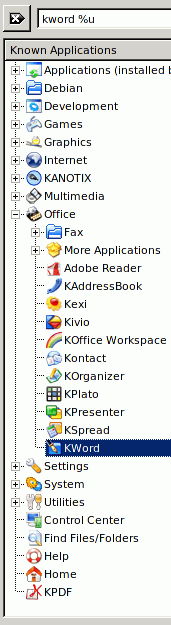
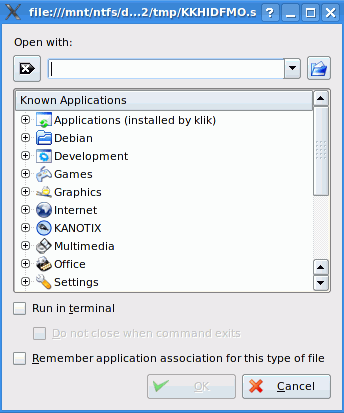 In Kanotix there is no default application for SXW extension, so let's select KWord, which is currently default for DOC file type:
 And this is the result:
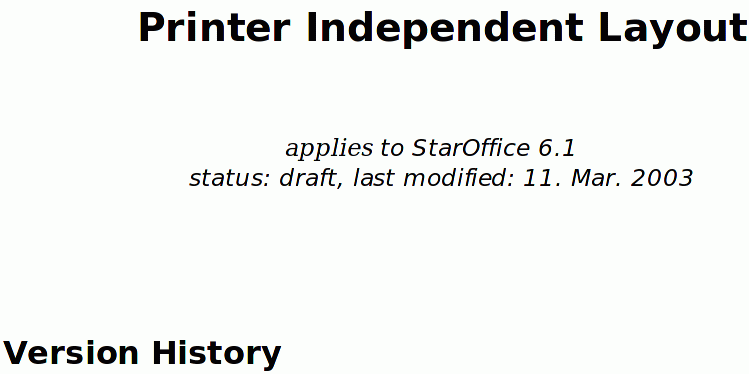 This is much better than Visioo-Writer, but still not perfect: If we take a closer look:
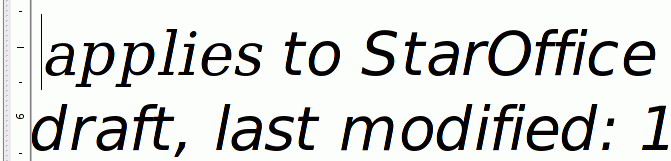 we can see that letters a, i, e in word "applies" are different from the letters in "StarOffice"
To be sure, if this is correct or not, we have to install OpenOffice:
- sux
- apt-get update
- apt-get install openoffice.org
...Quite a lot of megabytes just to view SXW file ;). In my case, version 2.0.3-6 was installed - here is the current changelog. Anyhow, the following screenshot shows how the above document is displayed in OpenOffice Writer, which is now the default application for SXW extension:
Need to get 96.4MB of archives.
After unpacking 219MB of additional disk space will be used.
...
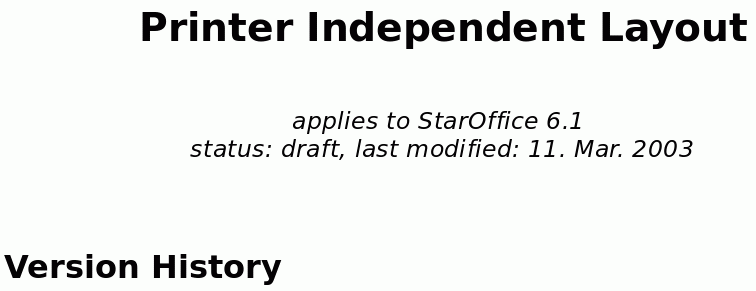 We can see that KWord was not able to display SXW document correctly.
BTW, here is the abstract of the above document:
Many users complain about changing layouts of their document once these documents are printed to different printers or even on different driver versions of one and the same printer.
Even if this behaviour is technically correct (due to different printer and font metrics) it is confusing for the user. This is especially true if the number of pages increases or decreases.
To avoid such re-formatting a printer independent layout mode will be introduced.
As a side-effect we will buy in better MS Office compatibility ;o)
IMHO this behaviour is technically correct if you are a printer. But I'm not a printer and for me technically correct means that page layout does not change when changing printer. Fortunately this is the default in the latest OpenOffice:
 []
[]
Thursday, August 03, 2006
Incoming folder
Programming is one of the most
difficult branches of applied mathematics;
the poorer mathematicians
had better remain pure mathematicians.
--- EDSGER WYBE DIJKSTRA, How do we tell truths that might hurt? (1975)
Arrogance in computer science is measured in nanodijkstras.
--- ALAN KAY, ?
difficult branches of applied mathematics;
the poorer mathematicians
had better remain pure mathematicians.
--- EDSGER WYBE DIJKSTRA, How do we tell truths that might hurt? (1975)
Arrogance in computer science is measured in nanodijkstras.
--- ALAN KAY, ?
Implementation of the "right click" functionality was just the first step on our journey to the Grand Unification of the Host and her Guest. Today we are going to make the second step: "incoming folder".
As we can see in "Crystal Reports" or "Word 2007" examples, the following actions are required:
- open the folder
- find the file
- right-click on it
- select 'doknir' in pop-up menu
- We need to split method wodShellMenu1Click - new method is called CreateJob:
 procedure TForm1.wodShellMenu1Click(ASender: TObject;
   const Item: IMenuItem; const Name, Directory, Targets: WideString);
 var
    cFile: string;
 begin
    Memo1.Lines.Add(Directory);
    Memo1.Lines.Add(Name);
    Memo1.Lines.Add('['+Targets+']');
    if Pos(';',Targets)>0 then begin
       ShowMessage('Please select only one file!');
    end else begin
       if UpperCase(ExtractFileExt(Targets)) = '.LNK' Then begin
          cFile:=GetTarget(Targets);
          Memo1.Lines.Add(cFile);
       end else begin
          cFile:=Targets;
       end;
    end;
    CreateJob(cFile);
    Memo1.Lines.Add('------------------------------');
 end;    // wodShellMenu1Click


 procedure TForm1.CreateJob(cFile: string);
 var
    SearchRec: TSearchRec;
    cTmpFile, cJob, cJb, cFile2: string;
    nSize: integer;
    cExt, cExt2: string;
 begin
    nSize:=-1;
    if FileExists(cFile) then  begin
       if not Forms.Application.Active then
          Forms.Application.Restore;
       if WindowState=wsMinimized then WindowState:=wsNormal;
       Forms.Application.BringToFront;
       FindFirst(cFile, faAnyFile, SearchRec);   // +cExt.Caption
       if (Length(SearchRec.Name)>0) and (SearchRec.Size>0) then begin
          nSize:=SearchRec.Size;
          Memo1.Lines.Add('size='+IntToStr(nSize) ) ;
       end;
       FindClose(SearchRec);
       if nSize>50000000 then begin
         if MessageDlg('File '+cFile+' is large! Do you want to continue?',
          mtConfirmation,  [mbYes, mbNo], 0) <> mrYes then begin
             Memo1.Lines.Add('------------------------------');
             exit;
         end;
       end;
       cExt:=ExtractFileExt( cFile );
       if cExt<>'' then begin
          cFile2:=LeftStr(cFile, Length(cFile)-Length(cExt) );
          cExt2:=ExtractFileExt( cFile2 );
          if cExt2<>'' then cExt:=cExt2+cExt;
       end;
 //      ShowMessage(cExt);
       cTmpFile:=TmpFile( cTmpPath, cExt );
       try
          FileCopy(cFile,  cTmpFile);
       except
          ShowMessage('Error copy: '+cFile);
       end;
       if FileExists( cTmpFile ) then begin
          // create job (random file name)
          cJb:=TmpFile(cJobsPath,'.jb');
          cJob:=ChangeFileExt(cJb,'.job');
          Memo1.Lines.Add('job='+ cJob);
          with TIniFile.Create(cJob) do begin
             WriteString('doknir job', 'tmp file', ExtractFileName(cTmpFile));
             WriteString('doknir job', 'original file', cFile);
             UpdateFile;
             Free;
          end;
          RenameFile(cJb, cJob);
       end;
    end;
end; // CreateJob- We need a function to get "My Documents" folder:
 function GetMyDocuments: string;
 var
    Res: Bool;
    Path: array[0..Max_Path] of Char;
 begin
    Res := ShGetSpecialFolderPath(0, Path, csidl_Personal, False);
    if not Res then raise
       Exception.Create('Could not determine My Documents path');
    Result := Path;
end; // GetMyDocuments- We need two timers: "TimerMon" and "TimerChg". They are disabled and with intervals 500 and 2500 ms, respectively. The first timer monitors "incoming folder". When a new file appears, it stops and starts the second timer which checks if the size of incoming file is changing. If not it stops, creates a job to send the document to the virtual appliance and it starts the first timer.
- Specific subfolder in "My documents" will be called [_doknir_] (so that it will be alphabetically on the top in the list of folders). The method FormCreate has these new lines:
    cMyDok:=GetMyDocuments()+'\[_doknir_]';
    bFindFirst:=TRUE;
TimerMon.Enabled:=TRUE; // start monitor cMyDok- And finally, here are two methods for the timer events:
procedure TForm1.TimerMonTimer(Sender: TObject);
// monitor incoming folder
var
   nRes: integer;
begin
   TimerMon.Enabled:=FALSE;
   if bFindFirst then begin
      nRes:=FindFirst(cMyDok+'\*.*', faArchive , srDok);
   end else begin
      nRes:=FindNext(srDok);
   end;
   if (nRes=0) then begin
      if bFindFirst then begin
         Memo1.Lines.Add('--------------');
         Memo1.Lines.Add('findfirst: '+srDok.Name+
            '  size='+IntToStr(srDok.Size) );
         bFindFirst:=FALSE;
      end;
      if (srDok.Name<>'.') and (srDok.Size>0) then begin
          TimerChg.Enabled:=TRUE;
      end else begin
          TimerMon.Enabled:=TRUE;
      end;
   end else begin  // nRes<>0
      if not bFindFirst then begin
         bFindFirst:=TRUE;
         FindClose(srDok);
      end;
      TimerMon.Enabled:=TRUE;
   end;
end;   // TimerMonTimer

procedure TForm1.TimerChgTimer(Sender: TObject);
// is size of file changing ...
var
   nSize: Int64;
   fs: TFileStream;
   cTo: string;
begin
   TimerChg.Enabled:=FALSE;
   Memo1.Lines.Add('incoming: '+srDok.Name);
   fs:=NIL;
   try
      nSize:=-1;
      fs:=TFileStream.Create(cMyDok+'/'+srDok.Name,
      fmOpenRead+fmShareDenyNone);
      nSize:=fs.Size;
   finally
      fs.Free;
   end;
   Memo1.Lines.Add('stream size: ' + IntToStr(nSize) );
   if (srDok.Size=nSize) then begin // size ok
      cTo:=cMyDok+'/done/'+srDok.Name;
      Memo1.Lines.Add('size ok: '+IntToStr(nSize) );
      if FileExists(cTo) then
         DeleteFile(cTo);  // temporary ***
      if RenameFile(cMyDok+'/'+srDok.Name, cTo) then begin
         CreateJob(cTo);
      end;
   end;
   TimerMon.Enabled:=TRUE;  // monitor for next file
end;   // TimerChgTimer
So, from now on, every time we save or put a document into the subfolder [_doknir_] of folder "My Documents", it will appear in the virtual appliance.
[]
Word 2007 (.docx) and ISO 19005 (PDF/A)
Word 2007 is the fourth generation of the most popular Windows word processor. First generation are Word 1.0, 1.1, 1.2 and 2.0. Second are Word 6.0 and Word 95 (this is 32-bit Word 6.0 with support for long file names and "red-squiggle underlined spell-checking"). Third generation (VBA replaced WordBasic) consists of Word 97, Word 2000, Word XP and Word 2003.
We can characterize Word versions by library riched20.dll. For example, Word 2000 came with version 5.30.23.1203, and Word 2007 beta is using version 12.0.4017.1003. BTW, for unicode support, the file usp10.dll (Uniscribe Unicode script processor) is important.
Word default file extension used to be .doc. Let's download one document and try to open it in doknir: "Windows Vista Hardware Start Button Specification". This is the result:
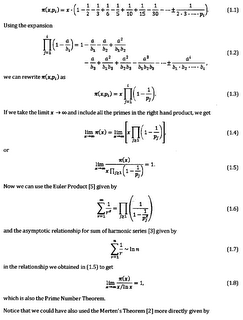
The quality of formulas in PDF files is still not perfect, but I hope Microsoft will correct this in the final version of Word 2007.
We can characterize Word versions by library riched20.dll. For example, Word 2000 came with version 5.30.23.1203, and Word 2007 beta is using version 12.0.4017.1003. BTW, for unicode support, the file usp10.dll (Uniscribe Unicode script processor) is important.
Word default file extension used to be .doc. Let's download one document and try to open it in doknir: "Windows Vista Hardware Start Button Specification". This is the result:
 Upgrading KWord to version 1.5.2 does not help - again "The application KWord (kword) crashed and caused the signal 6 (SIGABRT)". So we will need to use Word - in our case that will be version 2007 beta.
Before starting Word 2007, stop windows print spooler just like in "Crystal reports" example. Word 2007 behaves more friendly than Crystal reports, but again, only limited number of paper sizes are available (Letter, A4, Legal, A3, B4, B5) - fortunately, it is possible to define custom paper size.
There is no file menu in new Word - we must use "Office Button" instead: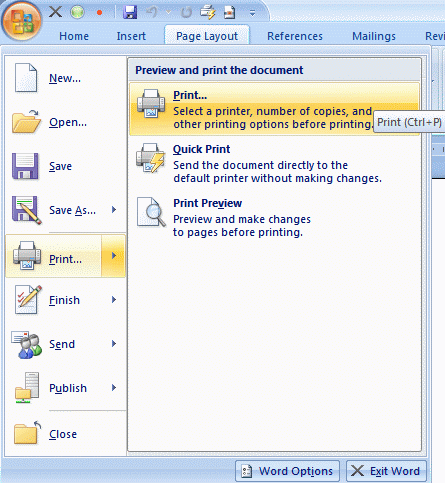 For example, if we click on "Print", nothing happens, because print spooler is not running. BTW, because of the new button it is not possible to close window by double-clicking the little horizontal line icon in the upper-left corner:
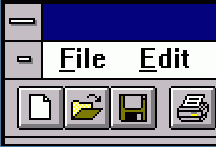
That's why I've added little '×' next to the "Office Button" to close Word...
So, how to print Word file using doknir? Fortunately, Word 2007 has very useful new feature: "Save As PDF". You must select folder and enter the name of the PDF file and click on button Publish. To display PDF in 'doknir', open that folder, select newly created PDF, right-click on it and select 'doknir' in pop-up menu. Here is the first page of above document, displayed in 'doknir' - VMware virtual appliance:
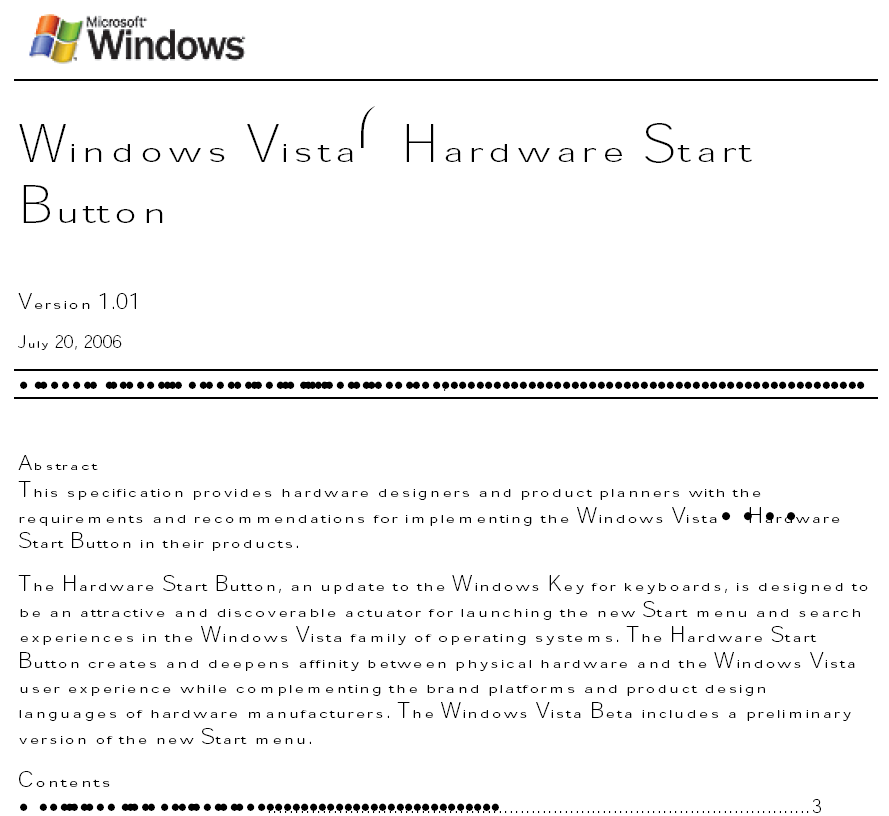 What kind of joke is this ?!!! Aren't PDF documents portable? Ehm, no! Let's take a look at Word "Save As PDF" options:
 Option "ISO 19005-1 compliant (PDF/A)" seems interesting - let's try it:
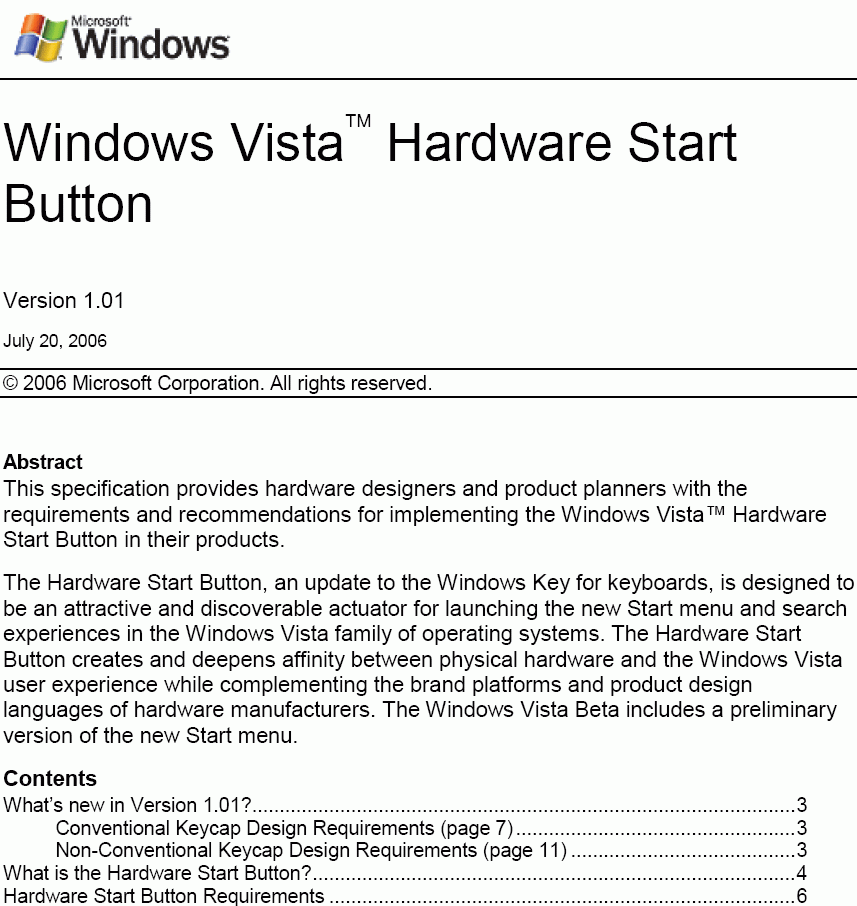 Aha, now it is OK. So what's the difference between the two PDF documents? If we look at the "Document Properties"->"Fonts" in Adobe Reader:
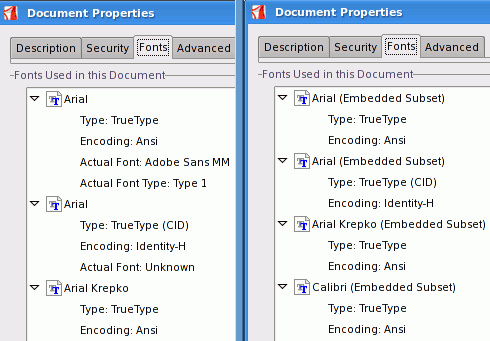 we can see that fonts in correct PDF document are embedded and this is the main difference between PDF and PDF/A:
The constraints include:
- Audio and video content are forbidden
- Javascript and executable file launches are prohibited
- All fonts must be embedded and also must be legally embeddable for unlimited, universal rendering
- Colorspaces specified in a device-independent manner
- Encryption is disallowed
- Use of standards-based metadata is mandated
At the end of this post, let's take a look at the new Word extension .docx. 'X' means that this is (compressed) Open XML format and I've found an excellent example with a lot of mathematical formulas. Bellow is the second page printed via 'doknir':
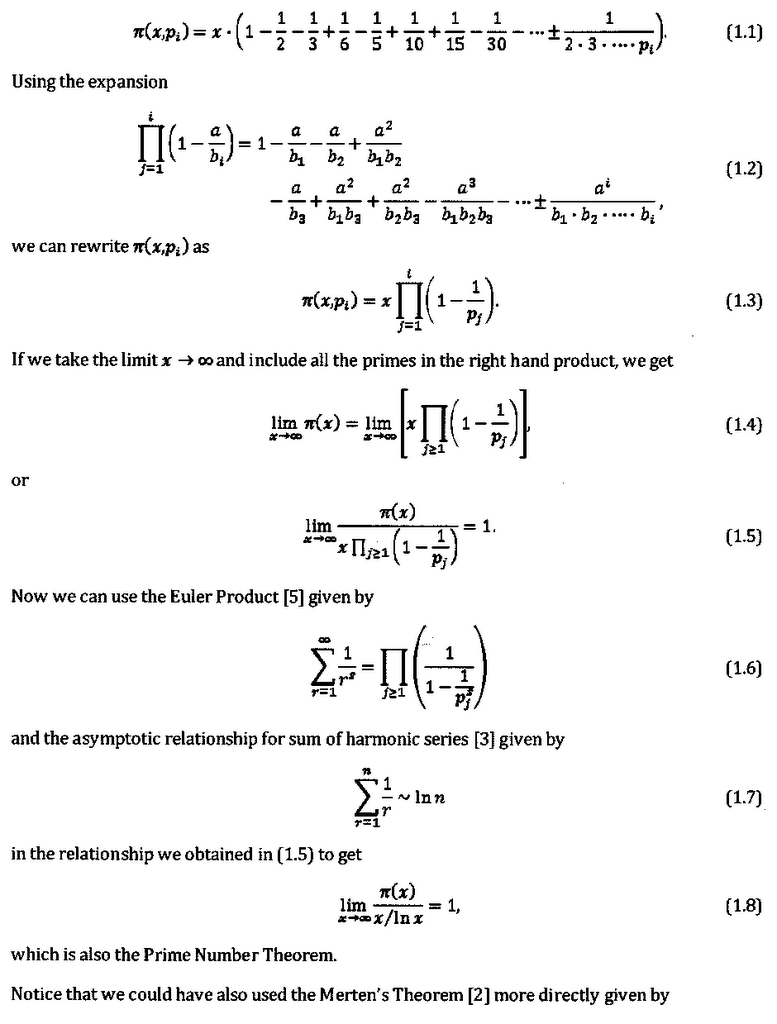
The quality of formulas in PDF files is still not perfect, but I hope Microsoft will correct this in the final version of Word 2007.
In the future, we will write a VBA macro to automate Word printing via 'doknir' ...
[]
Wednesday, August 02, 2006
spoolsv.exe
Simplicity is prerequisite for reliability.
--- EDSGER WYBE DIJKSTRA, How do we tell truths that might hurt? (1975)
--- EDSGER WYBE DIJKSTRA, How do we tell truths that might hurt? (1975)
Dr. Jeffrey Jaffe (CTO for Novell) says in his blog:
"True, Windows is far from perfect. It is not comfortable to “ctrl-alt-del” every time my printer driver gets confused and hangs the system."
Why does printer driver get confused? I don't know. Why does printer driver hang the system? Because Windows print spooler gets confused. What is print spooler?
Software that manages printing in the computer. When an application is requested to print a document, it quickly generates the output on disk and sends it to the print spooler, which feeds the print images to the printer at slower printing speeds. The printing is then done in the background while the user interacts with other applications in the foreground.
Why does print spooler get confused? Because printer driver gets confused ...
Windows Printing Arhitecture (WPA) is one of the major components of the Windows architecture and it is indeed quite complex (here are two articles: "Printing Architecture" and "How Network Printing Works"). Basically, print spooler is executable implemented as service (spoolsv.exe) that waits for an RPC call from the client side of the spooler (winspool.drv). Spoolsv.exe calls the print router (spollss.dll) that determines which print provider to call, based on a printer name or handle supplied with each function call, and passes the function call to the correct provider ...
What follow are the consequences of this complexity:
- Is spoolsv.exe a Virus?
- spoolsv.exe hogging 99% of cpu
- spoolsv.exe eats cpu
- Spoolsv - again!
- What to do when you install XP SP2 and can no longer print?
- Lost Network Printers after XP/SP2
- SPOOLSV.EXE Nightmare ...
- Prints some (complex) pages incompletely ...
And here are two links to solutions:
Another story is printing via Remote Desktop(RDP), Terminal Services or Citrix:
- Printing is still one of the biggest challenges in the server-based computing environment.
- Putting the smile back into Terminal Server and Citrix printing ...
- Surviving Printing on Citrix
- TS + Citrix Troubleshooting ...
- Printing in a Terminal Server environment has always been, and continues to be a challenge.
Above are only partial solutions - radical approach is to stop Windows print spooler service and use alternative solution. One of those radical ways how not to use Windows print spooler is to replace Windows, as Novell CTO suggests, with Linux:
"... that the Linux desktop has more than arrived – it has become the better desktop."
Well, here is my way how to tame print spooler: continue to use Windows desktop, but stop print spooler service and use "doknir" (VMware virtual appliance) as print spooler replacement.
[]
Saturday, July 29, 2006
Adobe Reader 7.0.8 for Linux
In "Crystal Reports" example, we were able to print report by exporting it to PDF file, which was displayed in doknir inside KGhostView windows. Unfortunately, KGhostView is not able to display certain complex PDF files. There is also no plugin for web browsers. Finally, even simple PDF is not printed correctly, if it is in landscape A4 format, for example.
Then there exist XPDF, poppler (XPDF fork), KPDF (which was based on XPDF, but now uses poppler), Evince (GNOME viewer, based on poppler). None of the packages convinced me!
So, only Adobe Reader remains. This used to be a problem, because there was no version 6 for Linux. This has changed with Adobe Reader 7. The installation file (.tar.gz) is larger than 40 MB.
Unzip it and go to Konsole, enter command sux and start installation with ./INSTALL. When the script asks about installing plugin, answer yes (and if it wants to owerwrite nppdf.so, also answer yes).
Then there exist XPDF, poppler (XPDF fork), KPDF (which was based on XPDF, but now uses poppler), Evince (GNOME viewer, based on poppler). None of the packages convinced me!
So, only Adobe Reader remains. This used to be a problem, because there was no version 6 for Linux. This has changed with Adobe Reader 7. The installation file (.tar.gz) is larger than 40 MB.
Unzip it and go to Konsole, enter command sux and start installation with ./INSTALL. When the script asks about installing plugin, answer yes (and if it wants to owerwrite nppdf.so, also answer yes).
If PDF is by default still opened by KGhostView, we need to change the application preference order. Start Konquerer, go to menu "Settings">>"Configure Konqueror...", click on "File associations", click on + before "applications", select "pdf" and move "Adobe Reader" to the top: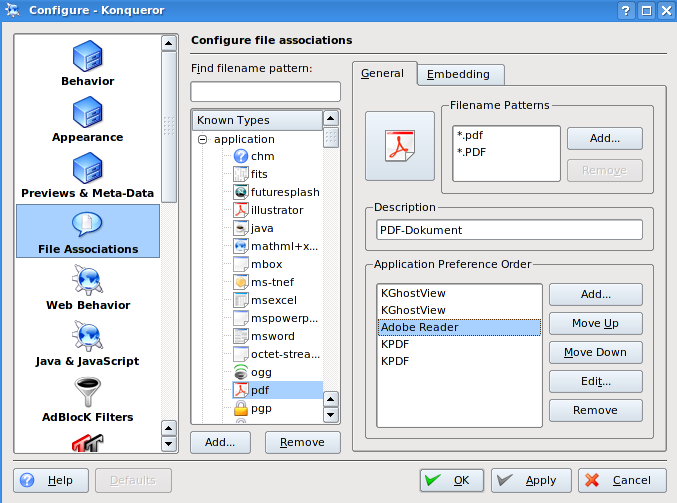
But there exists big difference between Linux and Windows version - "Digital Editions ..." is not listed in the "File" menu of Adobe Reader for Linux!
The following text is from Adobe documentation:
Q: What is a digital edition (formerly known as an eBook)?
A: A digital edition is an electronic edition of a physical book, magazine,
journal, newspaper, sheet music, or newsletter. A digital edition is a file that
has been converted to Adobe Portable Document Format (PDF). Adobe digital rights
management (DRM) helps protect Adobe PDF files.---
System Requirements
The digital edition capabilities of Reader 7.0 and Acrobat 7.0 are supported on the following operating systems:
- Windows® XP Professional, Home, or Tablet PC Edition
- Windows 2000 with Service Pack 2 or later
- Mac OS X version 10.2.4 or later
---
You must activate Adobe Reader before you can use it to purchase or read Digital Editions. Adobe Reader automatically starts an Easy Activation the first time you attempt to open a protected Digital Edition. To move documents to other computers, you must complete the full activation using an Adobe ID or .NET Passport login:
- If you have just completed an Easy Activation, click the Sign In And Reactivate button on the congratulatory page that appears after the Easy Activation process, and follow the on-screen prompts to complete the full activation.
- In Adobe Reader, choose File > Digital Editions > Authorize Devices. On the Adobe DRM Activator website, sign in using your Adobe ID or .NET Passport ID and follow the on-screen instructions to activate Adobe Reader.
- Go to the Adobe website at http://aractivate.adobe.com (Adobe DRM Activator), and follow the on-screen prompts.
DRM (Digital Restrictions/Rights Management) is mentioned above - you can read more about PDF and DRM relation in the two parts essay by John Mark Ockerbloom (1 & 2).
[]
Tuesday, July 25, 2006
Expand (resize/enlarge) virtual disk
Only for advanced users!
This is quite complicated procedure (because of reiserfs partition), so if you are not advanced user, I recommend to wait for "doknir II" which will be released in fall 2006.
For adventurous people, here are the details for growing VMware virtual disk:
- We will need the latest version of "resize_reiserfs" utility:
apt-get update
apt-get install reiserfsprogs - Close virtual appliance and copy entire folder to new folder.
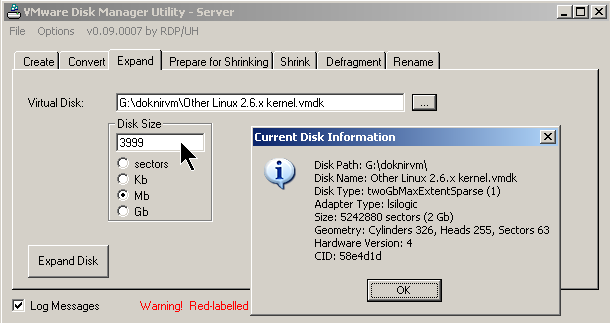
- Resize virtual disk in new folder using "Virtual DiskFactory". There must be VMware Server or Workstation installed, because utility depends on "DiskManager GUI" (command is vmware-vdiskmanager):

- Add enlarged disk to original VM as second SCSI disk (sdb)
- Start virtual appliance
- Use QTParted to remove linux swap partition (do not forget to commit) from second disk
- Start Konsole and type sux
- Use fdisk to change partition table of second SCSI disk (this will not delete data) in the following way:
- delete existing partition sdb1 (Start Cylinder: 1, End: 283)
- create new partition (Start Cylinder: 1, End: 450)
- write changes to partition table and exit - Start QTParted and create linux swap partition from remaining free space (cylinders from 451 to 509). Commit and exit!
- Expand the filesystem to fully fill the new size of the partition with the following command:
resize_reiserfs /dev/sdb1 - Close VM and remove second SCSI disk from it
- Start new (cloned) VM.
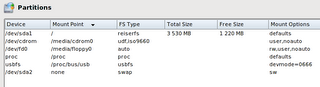
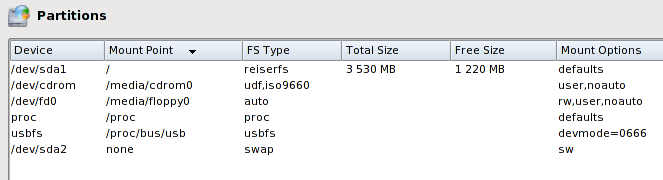
- Verify the size of partition: